User Guide
What is MediMeet?
MediMeet is a patient appointment management system for individual medical practitioners and small clinics.
With MediMeet, you can efficiently manage patient and appointment information in one place,
saving you both time and the hassle of maintaining records across multiple systems.
MediMeet is a command-line interface (CLI) application with fast, easy-to-use commands which make it ideal for the
fast typist.
With MediMeet, we make it easy to add and edit patient information, appointments and so much more, making it
a one-stop solution to manage your individual medical practice or small clinic!
Table of Contents
- What is MediMeet?
- Table of Contents
- How to (best) use this guide
- Quick start
-
Features
- Adding a patient:
add_patientorap - Listing all patients :
list_patientorlp - Editing a patient :
edit_patientorep - Locating patients by name:
find_patientorfp - Locating patients by details:
find_patient_detailsorfpd - Deleting a patient :
delete_patientordp - Adding patient notes:
remark_patientorrp - Viewing a patient:
view - Adding an appointment:
add_apptorap - Listing all appointments :
list_apptorla - Editing an appointment :
edit_apptorea - Locating appointments:
find_apptorfa - Viewing today’s appointments:
today - Deleting an appointment:
delete_apptorda - Clearing all entries :
clear - Viewing help :
help - Exiting the program :
exit - Saving the data
- Editing the data file
- Adding a patient:
- FAQ
- Command summary
- Glossary of technical terms
- Acknowledgements
How to (best) use this guide
This user guide is designed to be used by all of first-time, novice and advanced users of MediMeet. If you are an experienced user, you can jump straight to the Command summary section to see a list of all MediMeet’s commands. The following table shows the different sections and what they contain. To jump to a particular section, click on the link in the table of contents above.
| Section | Description |
|---|---|
| Quick start | Contains a step-by-step guide on how to download and start using MediMeet. |
| Features | Contains a detailed description of all MediMeet’s functionality. |
| FAQ | Contains answers to frequently asked questions. |
| Command summary | Contains a summary of all MediMeet’s commands. |
| Glossary of technical terms | Contains descriptions of technical terms used in this guide. |
Below are some common terms you will come across in the guide, and their explanations.
| Term | Meaning |
|---|---|
| Patient | A person who is registered in MediMeet |
| Appointment | A meeting between a doctor and a patient |
| Timeslot | The time period in which an appointment occurs |
| Remark | A note about a patient |
| Tag | A label that can be added to a patient |
| MediMeet | The application MediMeet |
We also use symbols to indicate useful information. The following table shows what each symbol means.
| Symbol | Description |
|---|---|
 |
Contains a tip that may be useful when using MediMeet. |
 |
Contains important information that you should be aware of. |
 |
Contains a warning that you should take note of. |
Tip:
You can use the glossary to quickly look up the meaning of any unfamiliar technical term. Just search for the term you want to look up!
Quick start
- Ensure you have Java
11or above installed in your Computer.
Finding your java version: To check the default java version on your device, run java -version on your terminal. You should see a line of text with 11.x.x. For more information, refer to this guide.
-
Download the latest
medimeet.jarfrom here. -
Copy the file to the folder you want to use as the home folder for your MediMeet.
- Open the
medimeet.jarfile by double clicking on it. (On Windows, if a dialog box opens asking ‘How do you want to open this file?’, choose ‘Java(TM) Platform SE binary’.) A window similar to the picture below should appear in a few seconds. Note how the app contains some sample data.
- If you are familiar with terminals and command lines, you can choose to open the file from a command line instead. Open a command terminal,
cdinto the folder you put the jar file in, and use thejava -jar medimeet.jarcommand to run the application.
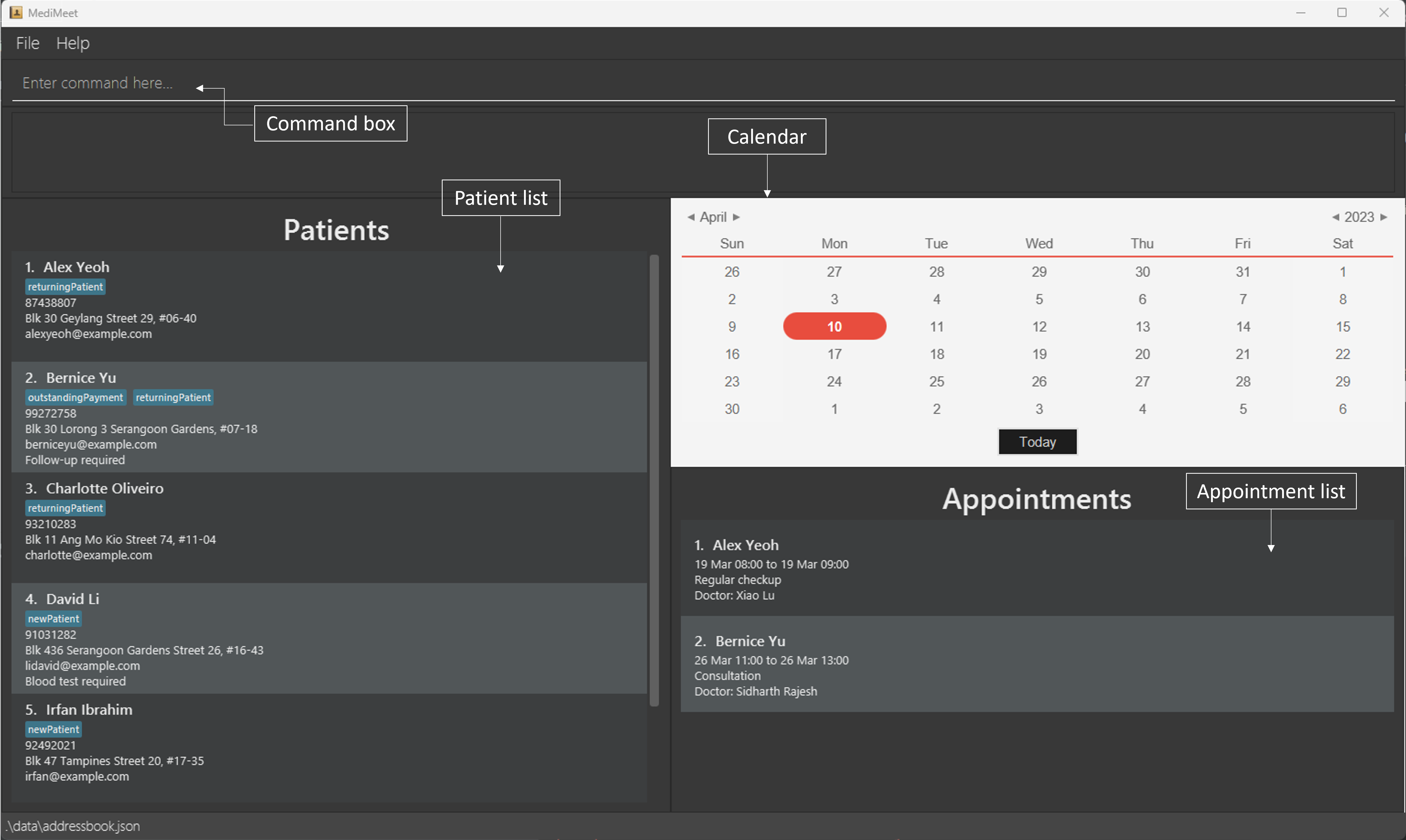
- As you can see from the screenshot of the application, we have four primary parts in the UI. They are:
- Command box: This is where the user types in their commands.
- Patient list: This is the currently shown list of patients with the numbers representing patient index numbers.
- Appointment list: This is the currently shown list of appointments with the numbers representing appointment index numbers.
- Calendar: Shows a calendar view of the current month. When a date is clicked, it will show a popup detailing the appointments for that day.
- If you are familiar with terminals and command lines, you can choose to open the file from a command line instead. Open a command terminal,
-
Maximise the app for the best user experience with viewing appointments. If the app is not maximised, some parts of the application may not be shown on your screen.
-
Type the command in the command box and press Enter to execute it. e.g. typing
helpand pressing Enter will open the help window.
Some example commands you can try:-
list_patient: Lists all patients. -
add_patient n/Brenda Song p/98765432 e/brendas@example.com a/Red Road, Blk 123, #01-01: Adds a patient namedBrenda Songto MediMeet. -
delete_patient 3: Deletes the 3rd patient shown in the current list. -
add_appt n/Brenda Song ts/04032023 10:00,04032023 11:00 d/Regular checkup doc/Xiao Lu: adds an appointment onMarch 4, 2023from10:00to11:00hrs forBrenda Songwith doctorXiao Lufor aRegular checkup. -
delete_appt 1deletes the 1st appointment shown in the current list. -
exit: Exits the app.
-
- Refer to the Features below for details of each command.
Features
In this section, you will get to learn about the various features of MediMeet. Before you dive into the features, we would like to give you some pointers about the command format.
Notes about the command format:
-
Words in
UPPER_CASEare the parameters to be supplied by the user.
e.g. inadd n/NAME,NAMEis a parameter which can be used asadd n/John Doe. -
Items in square brackets are optional.
e.g.n/NAME [t/TAG]can be used asn/John Doe t/friendor asn/John Doe. -
Items with
… after them can be used multiple times including zero times.
e.g.[t/TAG]…can be used ast/friend,t/friend t/familyetc. -
Parameters can be in any order.
e.g. if the command specifiesn/NAME p/PHONE_NUMBER,p/PHONE_NUMBER n/NAMEis also acceptable. -
If a parameter is expected only once in the command but you specified it multiple times, only the last occurrence of the parameter will be taken.
e.g. if you specifyp/12341234 p/56785678, onlyp/56785678will be taken. -
Extraneous parameters for commands that do not take in parameters (such as
help,list,exitandclear) will be ignored.
e.g. if the command specifieshelp 123, it will be interpreted ashelp.
Tip:
Many of the longer commands in MediMeet have a shorter alias. For example, add_patient can be used as ap instead. Where applicable, the alias will be shown next to the command.
Adding a patient: add_patient or ap
Adds a patient to MediMeet.
Format: add_patient n/NAME p/PHONE_NUMBER e/EMAIL a/ADDRESS [t/TAG]…
Tip:
A patient can have any number of tags (including 0).
Tip:
MediMeet does not support phone numbers longer than 15 digits. Although MediMeet will still accept phone numbers longer than 15 digits, the application might display the patient list strangely.
Caution:
Tags should be limited to 30 characters or less. If you want to record information longer than that, use the remark command instead.
Examples:
add_patient n/Brenda Song p/98765432 e/brendas@example.com a/Red Road, Blk 123, #01-01add_patient n/Adam Crowe p/94331843 e/adamc@example.com a/Blue Street, Blk 420, #03-05 t/newPatient
Listing all patients : list_patient or lp
Shows a list of all patients in MediMeet.
Format: list_patient
Editing a patient : edit_patient or ep
Edits an existing patient in MediMeet.
Format: edit_patient INDEX [p/PHONE] [e/EMAIL] [a/ADDRESS] [t/TAG]…
- Edits the patient at the specified
INDEX. The index refers to the patient index number shown in the displayed patient list. The index must be a positive integer 1, 2, 3, … - At least one of the optional fields must be provided.
- Editing of names are not allowed.
- Existing values will be updated to the input values.
Caution:
When editing tags, the existing tags of the patient will be removed i.e adding of tags is not cumulative.
- You can remove all the patient’s tags by typing
t/without specifying any tags after it.
Examples:
-
edit_patient 1 p/91234567 e/johndoe@example.comEdits the phone number and email address of the 1st patient to be91234567andjohndoe@example.comrespectively.
Locating patients by name: find_patient or fp
Finds patients whose names contain any of the given keywords.
Format: find_patient KEYWORD [MORE_KEYWORDS]
- The search is case-insensitive. e.g
hanswill matchHans - The order of the keywords does not matter. e.g.
Hans Bowill matchBo Hans - Only the name is searched.
- Only full words will be matched e.g.
Hanwill not matchHans - Patients matching at least one keyword will be returned (i.e.
ORsearch). e.g.Hans Bowill returnHans Gruber,Bo Yang
Examples:
-
find_patient JohnreturnsjohnandJohn Doe -
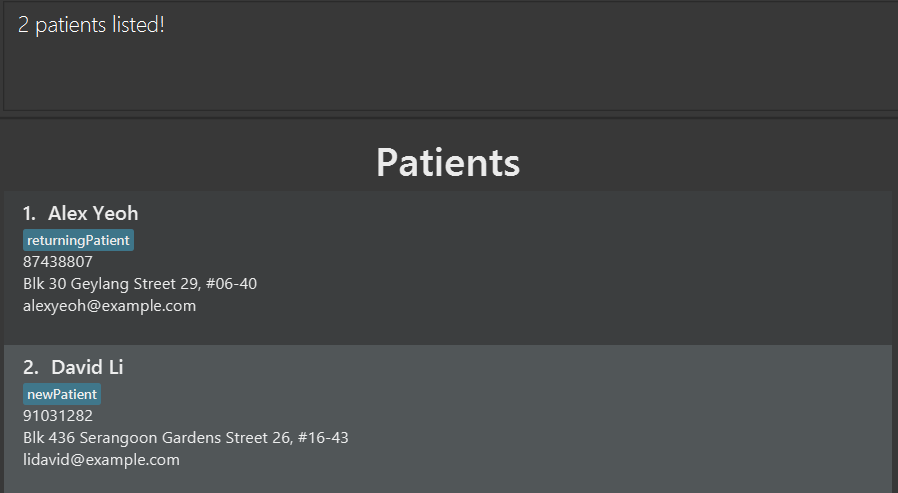
find_patient alex davidreturnsAlex Yeoh,David Li
Locating patients by details: find_patient_details or fpd
Finds patients whose details contain any of the given keywords.
Format: find_patient_details KEYWORD [MORE_KEYWORDS]
- The search is case-insensitive. e.g
blkwill matchBlk - The order of the keywords does not matter. e.g.
Blk 343will match343 Blk - All patient details are searched.
- Only full words will be matched e.g.
Blocwill not matchBlock - Patient details matching at least one keyword will be returned (i.e.
ORsearch). e.g.38 Collegewill return38 Avenue Street,36 College Avenue East
Examples:
-
find_patient_details 87438807returns the patient with a phone number87438807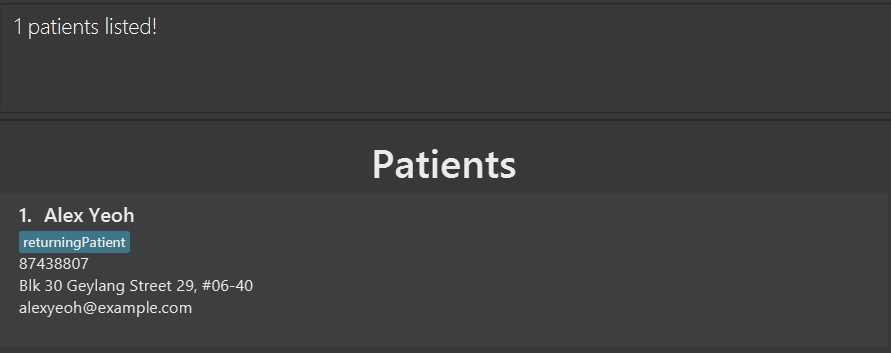
Deleting a patient : delete_patient or dp
Deletes the specified patient from MediMeet.
Format: delete_patient INDEX
- Deletes the patient at the specified
INDEX. - The index refers to the index number shown in the displayed patient list.
- The index must be a positive integer 1, 2, 3, …
Examples:
-
list_patientfollowed bydelete_patient 2deletes the 2nd patient in the MediMeet. -
find_patient Alexfollowed bydelete_patient 1deletes the 1st patient in the results of thefind_patientcommand.
Adding patient notes: remark_patient or rp
Adds a note to a patient in MediMeet so that the doctor can store and access notes about a given patient.
Format: remark_patient INDEX [r/REMARK]
- Remarks cannot be edited and can only be overwritten.
- In order to remove notes from a patient, use
remark_patient INDEXwithout the optional[r\REMARK], or useremark_patient INDEX r/.
Example:
-
remark_patient 4 r/Blood test requiredAdds a noteBlood test requiredto the patient.
-
remark_patient 4Removes any existing note from the 4th patient in the patient list.
Viewing a patient: view
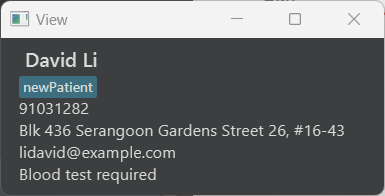
Views a patient’s full details in another popup window.
Format: view INDEX
Example:
view 4
Adding an appointment: add_appt or ap
Adds an appointment for an existing patient in MediMeet.
Format: add_appt n/NAME ts/TIMESLOT d/DESCRIPTION doc/DOCTOR
- The
TIMESLOTformat is:DDMMYYYY HH:MM,DDMMYYYY HH:MMwhere the first slot indicates the start time and the second slot indicates the end time.- Example:
ts/04032023 10:00,04032023 11:00indicates that the appointment starts at10:00hrs onMarch 4, 2023and ends at11:00hrs onMarch 4, 2023.
- Example:
Example:
-
add_appt n/Alex Yeoh ts/04032023 10:00,04032023 11:00 d/Regular checkup doc/Xiao Lu: adds an appointment onMarch 4, 2023from10:00to11:00hrs forAlex Yeohwith doctorXiao Lufor aRegular checkup.
Listing all appointments : list_appt or la
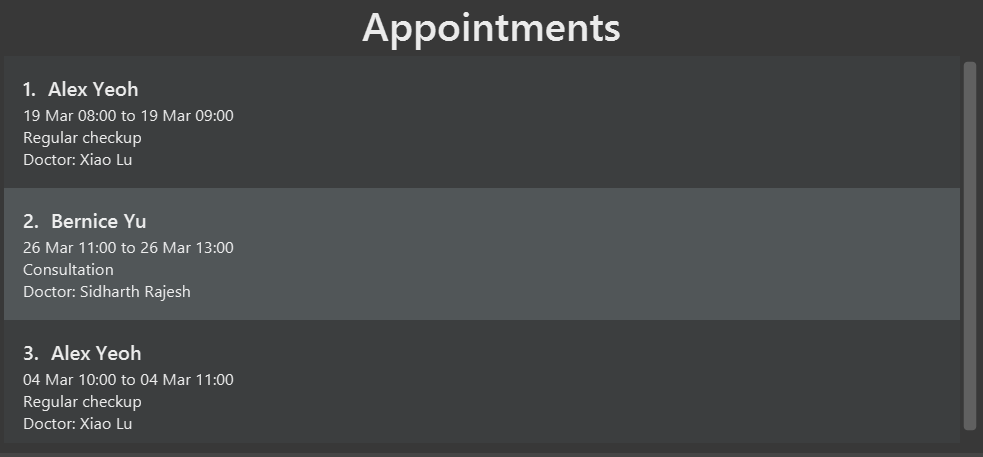
Shows a list of all appointments in MediMeet, which is helpful for adding, deleting or editing appointments.
Format: list_appt
Editing an appointment : edit_appt or ea
Edits an existing appointment in MediMeet.
Format: edit_appt INDEX [ts/TIMESLOT] [d/DESCRIPTION] [doc/DOCTOR]
- Edits the appointment at the specified
INDEX. The index refers to the appointment index number shown in the displayed appointment list. The index must be a positive integer 1, 2, 3, … - At least one of the optional fields must be provided.
- Existing values will be updated to the input values.
- Fields not edited will remain intact.
- The name of the patient in the appointment cannot be edited.
Examples:
-
edit_appt 1 ts/01012023 00:00,01012023 01:00 d/Regular checkupEdits the timeslot of the 1st appointment to be01012023 00:00,01012023 01:00and the description to beRegular checkup, respectively.
Locating appointments: find_appt or fa
Finds all appointments whose timeslots cover the specified date and time. If a second timeslot is specified, all appointments that occur within the two date and time periods are found.
Format: find_appt TIMESLOT [TIMESLOT]
Examples:
-
find_appt 04032023 10:00Finds all appointments during04032023 10:00, i.eMarch 4, 202310:00hrs.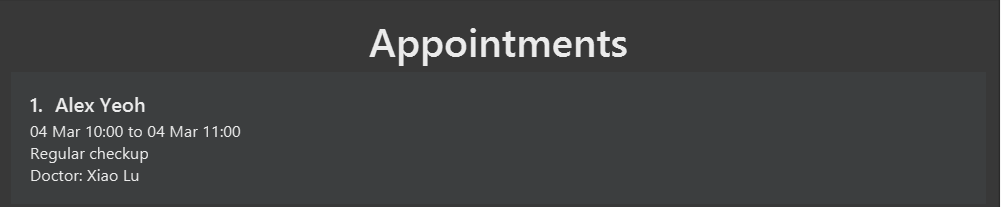
-
find_appt 19032023 00:00 26032023 23:59Finds all appointments betweenfind_appt 19032023 00:00and26032023 23:59.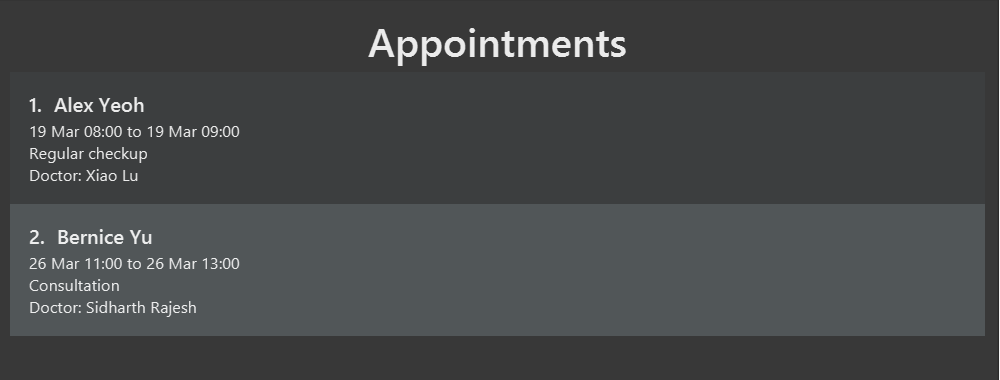
Viewing today’s appointments: today
Views the appointments that are occurring today.
Format: today
Deleting an appointment: delete_appt or da
Deletes an existing appointment in MediMeet.
Format: delete_appt APPOINTMENT_INDEX
Example:
delete_appt 1
Clearing all entries : clear
Clears all entries, i.e, patients and their corresponding appointments from MediMeet.
Caution:
Once cleared, the entries cannot be brought back, i.e, this action cannot be undone.
Format: clear
Viewing help : help
Shows a message explaining how to access the help page.

Format: help
Exiting the program : exit
Exits the program.
Format: exit
Saving the data
Patient list and appointment list data are saved in the hard disk automatically after any command that changes the data. There is no need to save manually.
Editing the data file
MediMeet data are saved in two JSON files: [JAR file location]/data/addressbook.json contains patient contact information, and [JAR file location]/data/appointment_list.json contains appointment information. Advanced users are welcome to update data directly by editing that data file.
Caution:
If your changes to the data files make their format invalid, MediMeet will discard all data and start with an empty data file at the next run.
FAQ
Q: How do I transfer my data to another computer?
A: Install the app in the other computer and overwrite the empty data file it creates with the file that contains the data of your previous MediMeet home folder.
Command summary
| Action | Format, Examples | |
|---|---|---|
| Add patient |
add_patient n/NAME p/PHONE_NUMBER e/EMAIL a/ADDRESS [t/TAG]… e.g., add_patient n/Brenda Song p/98765432 e/brendas@example.com a/Red Road, Blk 123, #01-01
|
|
| Add appointment |
add_appt n/NAME ts/TIMESLOT d/DESCRIPTION doc/DOCTOR… e.g., add_appt n/Alex Yeoh ts/04032023 10:00,04032023 11:00 d/Regular checkup doc/Xiao Lu
|
|
| Add patient notes |
remark_patient INDEX [r/REMARK] e.g., remark_patient 3 r/Immunocompromised
|
|
| Clear | clear |
|
| Delete patient |
delete_patient INDEXe.g., delete_patient 3
|
|
| Delete appointment |
delete_appt INDEXe.g., delete_appt 3
|
|
| Edit patient |
edit_patient INDEX [p/PHONE_NUMBER] [e/EMAIL] [a/ADDRESS] [t/TAG]…e.g., edit_patient 2 e/jameslee@example.com
|
|
| Edit appointment |
edit_appt INDEX [ts/TIMESLOT] [d/DESCRIPTION] [doc/DOCTOR] e.g., edit_appt 1 ts/01012023 00:00,01012023 01:00 d/Regular checkup
|
|
| Find patient |
find_patient KEYWORD [MORE_KEYWORDS]e.g., find_patient James Jake
|
|
| Find in patient details |
find_patient_details KEYWORD [MORE_KEYWORDS]e.g., find_patient_details 22224444
|
|
| Find appointment |
find_appt TIMESLOT [TIMESLOT]e.g., find_appt 01012023 00:00 01012023 01:00
|
|
| List patient | list_patient |
|
| List appointments | list_appt |
|
| Today | today |
|
| Help | help |
Glossary of technical terms
| Term | Description |
|---|---|
| CLI | Command Line Interface. MediMeet is a CLI application. |
| GUI | Graphical User Interface. MediMeet has a GUI created with JavaFX. |
| JAR | Java Archive (JAR) is a package file format typically used to aggregate many Java class files and associated metadata and resources (text, images, etc.) into one file for distribution. |
| JSON | JavaScript Object Notation (JSON) is a lightweight data-interchange format. |
| Mainstream OS | Mainstream OSes include Windows and MacOS. They are the operating systems that are supported by MediMeet. |
| Java | Java is a popular programming language that MediMeet is written in. |
| Gradle | Gradle is a build tool that MediMeet uses. |
| IntelliJ | IntelliJ is an Integrated Development Environment (IDE) that MediMeet was written in. |
Acknowledgements
- This project is based on the AddressBook-Level3 project created by the SE-EDU initiative.
- This project uses the JavaFx library.
- This project uses the JUnit library.